
The following instructions refer to accessing digital content on a CD purchased from TCNA
and/or by using a username and password. To view these instructions in PDF format, click here.
1. To access your protected files with only a Username and Password:
Open your web browser and navigate to www.tcnatile.com/downloads.
2. You will be prompted to create an account under the New Customer heading. If you already have an account, enter
your username and password in the Returning Customer heading. Note: This is not the username and password
you have been given to access the PDC file(s). This is the email and password you entered when creating your
account.
3. After you create and verify your account, you will be prompted to enter a username and password on the
Downloads page. Enter your Username and Password exactly as you received it and click login (case sensitive).
Note: This is not the email and password you just created for your account.
4. Click on the link below “Download Files.” It will appear as Files-XXXXX-XXXXXXXXXX.zip.
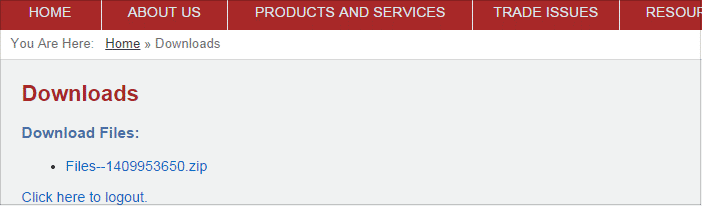
5. Having already unzipped your downloaded file, for Windows computers, double click the SafeguardPDFViewer.exe
file and follow the setup instructions.
NOTE: The Windows version is included in your download or can be freely downloaded here.
You can get the free viewer here for Mac users. The product manual for installing the Mac software is here.
6. Go back to your unzipped folder and double click on the license file (.llv file) while connected to the internet.

safeguard_license.llv

7. After installing the license file, you may now open your protected pdc documents.
YourDocument.pdc
You can find out more about the document protection software we are using here.
0 Comments